Greetings Linux boffin. If you are reading this Web page you’ve probably been searching for a colour laser multi-function device that works with the Linux operating system.
Well search no more. I’m pleased to report the Epson AcuLaser CX11NF – a combined laser printer, scanner, copier and fax machine – works like a charm. What’s more the drivers are all open source – how about that!
By way of a backgrounder, I’ve been using Epson kit under Linux for several years now (read this post) and have been very satisfied. In my experience the hardware is good and so is the print and scan quality. And while I’ve never had to deal with Epson’s customer service and support, a faulty part in the CX11NF prevented it from working out of the box, but the fault was reported and tended to by an Epson dealer all within seven (7) days. Well done!
About the unit itself, the CX11NF is one of the more recent additions to Epson’s line up as the vendor branches out from consumer inkjets to business colour lasers. The CX11NF received favourable reviews from both Macworld and PC World. At the very least, the CX11NF is a modern, fully-functional device that’s not yesterday’s hardware and is definitely no compromise for Linux users.
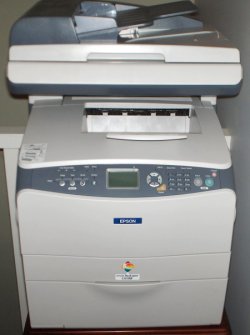
USB printing and scanning with Epson machines has been available for Linux for at least six years now and was even backported to late 2.2 series kernels if I remember correctly. But you know how it goes with these types of peripheral devices, support for Linux usually ranges from nothing to very little. So hats off to Epson, a company that seems to actually care whether its devices will work with Linux.
Printing
Okay, let’s get started. While many of the Epson printer and scanner drivers ship with the Gutenprint (formerly Gimp-Print) package, the AcuLaser CX11NF does not. Surf on over to the Avasys Download Service for Linux and grab the source file for the driver – Epson-ALCX11-filter-1.1.tar.gz for your preferred printing system, CUPS or LPR. Most people will be using CUPS by default these days.
Before you attempt to install the driver, make sure you have the CUPS development headers installed along with build-essential if you’re an Ubuntu user.
# apt-get install libcupsys2-dev
With that done you should be able to compile the driver.
# tar -zxvf Epson-ALCX11-filter-1.1.tar.gz
# cd Epson-ALCX11-filter-1.1
# ./configure
# make install
If you get an error message during the configuration process along the lines of “‘cups-config’ missing, please install CUPS or fix your system” then go back and install the CUPS development headers.
With the driver installed, you’re now ready to setup the printer with CUPS or a suitable CUPS front-end. For the purpose of this guide I will show how it’s done with KDE. If you’re a GNOME user you can just download and install KDE.
Go to the KDE Control Centre -> Peripherals -> Printers. Once there Select “Add -> Add printer/class” and the new printer wizard will begin. Select the type of connection (disclaimer: I’ve only tested this will it connected locally via USB and not over Ethernet yet) and the select the printer shown on the correct USB port. When selecting the driver choose Epson as the manufacturer and ALCX11 as the model.
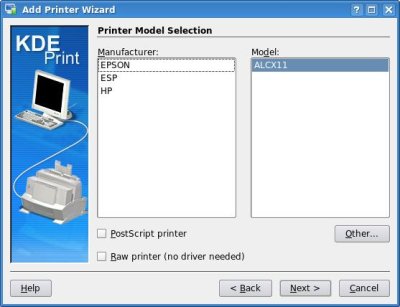
Once setup, the printer will be visible in the KDE Control Centre’s printers section.
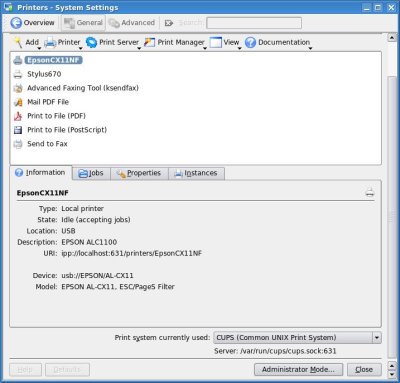
The printer should now be available to all applications when the cupsys daemon is running. File -> Print should give you the option of using it. If so desired you can then set the CX11NF as the default printer by right-clicking on its icon in printer settings section. Then ctrl-p will default to the new MFD.
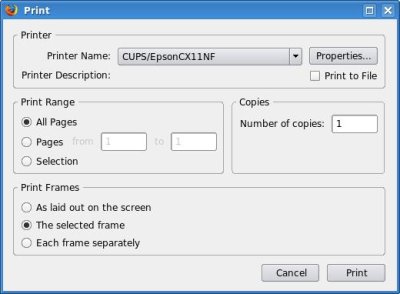
If everything went well you should now be enjoying your new printer. Print a test page to confirm this happiness.
Scanning
Like printing, USB scanning under Linux can be a bit of a hit and miss affair. But for the AcuLaser CX11NF it couldn’t be easier and the drivers are part of the Ubuntu Linux distribution which means no third-party software to compile! It is supported by the SANE project.
You need the Epkowa driver which is not part of the standard sane package so install the extras.
# apt-get install libsane-extras
For some reason the package installs the drivers but does not create the config file. I’ll send a message to the maintainer about that. For now, manually create it like so.
# cp /etc/sane.d/epson.conf /etc/sane.d/epkowa.conf
Make sure its using USB by editing the file and placing (if not already there) usb on one line within the file. Sane sees the config files and uses the driver of the same name accordingly. Now install a scanner front-end so you can actually do some scanning. I recommend Kooka.
# apt-get install kooka
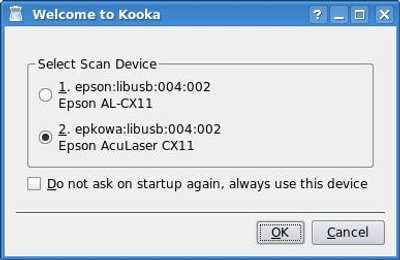
Select the Epkowa driver when starting Kooka as the standard Epson driver doesn’t work, and make that the default if desired.
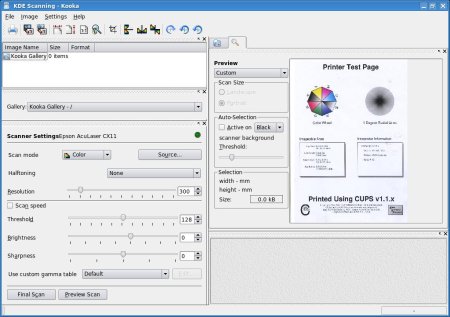
You should then hear the scanner initialize. When Kooka starts, put something on the scanner (in this case, its the CUPS printer test page) and hit “Preview Scan”. If the image appears on the right, you’re successfully configured the CX11NF for scanning!
So there you have it. The Epson AcuLaser CX11NF colour laser MFD works with Linux using industry standard, open source drivers. Regarding the built-in fax, I’m yet to test it but you can be most certain that it will work as usual when faxing straight from the device. As for faxing from the PC, I’m yet to look into that. I’m also yet to look into the intricacies of the device itself and whether the open source drivers support 100 percent of the CX11NF’s features. So while the CX11NF “works well” with Linux, the functionality may not be on par with the proprietary drivers for Windows. Perhaps someone from Epson or Avasys could fill us in on that.
This guide is representative of the philosophy that many of the industry’s hardware and device manufactures just don’t understand when it comes to software drivers. Literally hundreds of millions, perhaps billions, of dollars are spent every year engineering proprietary device drivers that are forever playing catch-up with operating system development. It seems both Windows Vista and Linux users are sharing the device driver pain.
Contrary to what these retarded hardware manufacturers think, having open source drivers available actually facilitates uptake of the product. Who the hell is going to buy a add-on for their computer if the damn thing isn’t supported and doesn’t work at all? With open source drivers, however, they can be quickly ported by anyone to a new operating system release. Not to mention the reduction in R&D expenditure for driver development. An open source driver can be freely deployed on any computer, as well, making the notion of “this computer doesn’t support that peripheral”, nonsense.
If it’s competition they fear then that’s misguided as well. Let me get this straight, a competing vendor is going to attempt to clone a hardware device, change its manufacturing and design processes, and offer the same level of marketing and technical support because it can view the source code of a device driver? I’ll print to that…
[Disclaimer: I don’t work for Epson, don’t write about Epson, don’t have anything to do with Epson, don’t think I will ever have anything to do with Epson, I just want a bloody MFD that works with Linux]

Hi!
“I’ve only tested this will it connected locally via USB and not over Ethernet yet”
I tryed several time to use this printer via network ( in my setup I cannot use it locally as it is away from all the computers ) and I was unsucessfull… I tried with ubuntu 6.06 and Suse 10, and it seems like the printer would just send my stuff over to /dev/null as it did not reacted to my CUPS configs or manual attempts…
I would sure like to hear from someone that has sucess with this printer printing from network, so that I start trying once again to set this up..
Have you had any feedback so far?
Thanks
After some research I found the following on the Avasys website which might answer your problem, I have tidied it up a bit:
In Ubuntu the foomatic filter seems to break the pipe, so the printing always stops.
In the script /usr/bin/pstoalcx11.sh there are some problems (at least on Ubuntu edgy amd64) and its the bash arithmetic syntax which needs some changes.
Lines using arithmetic like $((Copies+1)) need to be changed to $(($Copies+1)) etc to make it work again.
There are three occurrences in lines 202,228 and 229 which need to be changed.
Hi! I’ve a CX11N too. I use my printer via network. Epson as printer works correctly but I’m not able to use its scanner with Kooka ( already installed on my Kubuntu ). Scanning front-end doesen’t find my Epson Printer. Does Kooka works only with USB printers? I didn’t find /usr/bin/pstoalcx11.sh script.
Could you advise another scanning front-end that could work with Epson CX11N printer?
Thanks!!
i want a driver for pardus
Can you be more specific as to where the
Epson-ALCX11-filter-1.1.tar.gz driver is on the Avasys site? I can’t locate it.
Thanks
I’m trying to get the CX11NF to work on Ubuntu 7.04.
Your instructions exectued OK but I can’t get any output, not even the test page. I have made the changes as advised with the addional $ signs in the pstoalcx11.sh file but still no luck.
Can you offer any help here?
I’ve just run your instructions
Just got this thing set up and installed. I’m using Fedora 7, and the avyasys website already had precompiled drivers for it. I installed the 2 packages (Epson-ALCX11-filter-1.1-0.i386.rpm and
Epson-ALCX11-filter-cups-1.1-0.i386.rpm), then configured my driver to use the “ESC/PageS Filter”. The test page worked the first time out. The printer is connected via network, so I haven’t tried scanning out yet.
Their documentation says that network scanning isn’t supported directly by the printer (via IP address), but is if you have a “server” connected via USB to the printer and running SANE in a server role. I’ll be trying this out when I get a *long USB cable.
Hi,
i have the aculaser cx11nf on Suse 9.3 and work very well with ethernet+cups+ipp… but i can’t use the scanner; but some users with Windows can using the scanner with ethernet.
Thanks.
Your tips work beautifully. I have been spending days looking for the exact fix and I was about to give up until I discovered your page by googling.
Thanks very much for the excellent tips.
Byw, when I start up Kooka, the following errors shows up on the terminal.
kooka
X Error: BadDevice, invalid or uninitialized input device 169
Major opcode: 147
Minor opcode: 3
Resource id: 0x0
Failed to open device
Just wondering what I have gone wrong?
Thanks again.
Quang
Just double-checked the config file “etc/sane.d/epkowa.conf”, I think the X Errors were due to mis-configuration. Forgot to say that my Aculaser CX11NF is configured to be a networked printer so I guess that Kooka does not work.
Thanks,
Quang
Hi,
Thanks for your instructions, I’ve successfully set up my CX11NF on Ubuntu Feisty (Gnome), without running into any trouble. For those who need an extra tip, just select Network Printer, IPP printer and enter the following URI : http://192.168.xxx.xxx:631/EPSON_IPP_Printer
My CX11NF is directly connected to the network, and I cannot get xsane to find it. I can use the scanner in XP, though.
Regards,
Fred
Hi,
It worked very well on Ubuntu 7.04 (feisty) but after upgrading to 7.10 RC (gutsy) it doesn’t work anymore 🙁 I’ll try to reinstall it on a fresh installation of Ubuntu 7.10 but I think it won’t change anything.
Does anyone have an idea ?
Michaël.
Hi Michaël,
I had the same problem when I upgraded to Gutsy, and I solved it with :
sudo aa-complain cupsd
Cheers,
Fred
Thank a lot Fred ! It’s works again !
But “aa-complain is used to set the enforcement mode for one or more profiles to complain. In this mode security policy is not enforced but rather access violations are logged to system log.”…
The above solution about aa-complain worked for me in Gusty too…. not sure why, but its working, so I’m happy.
I was really happy to find this, but after following the instructions (‘had to use ‘sudo make install’ in the last step) my AL-CX11NF is still not working as a networked printer with Ubuntu 7.10 “Gutsy”. I tried to follow the instructions for the to cleanup the /usr/bin/pstoalcx11.sh file as suggested in one of the threads, but that didn’t work either. I see that someone has it working in Fedora 7, which is great. I’d hate to switch systems at this point…but I really need this printer with a Linux OS on the network.
One more fix/thing to try:
I am using an Asus Eee PC, which comes preloaded with Linux (I think it’s an Ubuntu variant), and I’m (now) network printing to my CX11NF. In any event, after trying all of the above hints, restarting cups, etc, all attempts to print were still mysteriously failing (they’d just show in the print queue and disappear after a few seconds). I discovered that Epson’s pstoalcx11.sh script calls the bc command line utility multiple times and that my distribution at least was missing it (it seems to do this to compute DPI/page size operations). After installling it, i.e., apt-get install bc, everything “magically” started to work!!!
Although I think this would be standard on most distributions these days, I’d still suggest that you check this if you’re having similar problems. Incidentally, I edited the script and turned on the debugging…. this error still did NOT show anywhere in the log file in tmp (nor any hint of it, i.e., secondary errors). I only discovered this after manually trying to run the script with then required arguments (script does not test for its existance and instances of it as just sent to stderr). The command line looks something like this (which you’ll see in the log file if you turn on debugging):
/usr/local/bin/pstoalcx11.sh PageSize=lt XY600=5100×6600 MediaType=normal TonerSave=false InputSlot=cassette1 Collate=on Copies=1 Color=color Resolution=600dpi
XY600=5100×6600
After I fixed the error, this command runs without error and just sits/does not return (I presume it’s waiting for input in a pipe or something…but I’m too lazy to look). If you’re having problems, I’d still suggest trying to run it and see if any investigatable errors appear–it worked for me.
Thanks all for the tips… I hope this helps,
Pete
Thanks a lot, Pete. I installed the bc utility as you suggested but still couldn’t print; same old problem–jobs would show up in the print queue and then disappear. I don’t know if the Gutsy distribution included it or not. So, I typed in the command line you mentioned to see what errors popped up. ‘Turns out, it couldn’t find the file libstdc++5. So, I followed instructions I found from a web search to install the library file:
sudo apt-get install libstdc++5
Presto! I can print to my networked AL-CX11NF. You saved my Ubunto distribution, because I wouldn’t keep using it without being able to print to this printer over the network. Thanks, again.
– the script does not work on some distros (notably ubuntu) because it is not sh compatible (that’s where the arith errors come from, ubuntu uses dash as sh replacement, not bash). Changing #!/bin/sh in the first line into #!/bin/bash should fix all.
-are we **sure** this printer doesn’t make use of some ugly binary only translator for postscript-> proprietary, non-industry standard ESC/Page S languange? Most Epson printers using a filter as described above actually are doing this. i didn’t check this particular driver but I am pretty sure on it.
I cannot use such driver as i am not on x86, and it will break for all of you as soon as some library becomes binary incompatible.
Better someone spend time on reverse engineering Page S if they keep on using it. Doesn’t seem to hard.
I just installed Ubuntu 7.10 (Gutsy Gibbon), and “sudo aa-complain cupsd” solved the problem for me too.
No idea what I am doing, but I’m glad you guys are there 😉
Thanks
Yessss, i have installed my cx11N on ubuntu gutsy. Tanks for tips.
I got this thing to scan with xsane (not with kooka though). It’s connected on the local network.
Had to modify the file /etc/sane.d/epson2.conf, commenting the line “usb” and uncommenting the line “net 192.168.0.3” (use the printer’s IP address here).
Then launch xsane : detected the scanner and all was good.
Note, I did follow all the other instructions up there, installing libsane-extras and dependencies.
This is on Ubuntu 7.10 (Gutsy).
http://www.avasys.jp/english/linux_e/dl_mfp.html is not reachable and I can’t find Epson-ALCX11-filter-1.1.tar.gz anywhere else on the net. Can someone provide it?
Thanks Scyrmaa for the tip on getting the scanner to work over the network. As a follow-up, I want to add that in order for this to work on my system, I had to edit /etc/sane.d/dll.conf and uncomment ‘epson2’.
@Pete with the Eee PC:
I’m trying to get my AL-CX11 working with my Eee PC as well. Found your comment, but even after installing bc, my test page still goes nowhere. It would appear that in the pstoalcx11.sh script when the $Resolution contains letters (like ‘300dpi’) this causes problems on the bc lines used to calculate the Xdot and Ydot values. As a result, these variables are blank and the proper resolution isn’t used in the rest of the script.
When I run the command-line with ‘Resolution=600pi’ I get:
(standard_in) 1: parse error
(standard_in) 1: parse error
No value
No value
Which is coming from those Xdot/Ydot lines. I’ve tried a few things but still can’t get it to work. Any ideas?
@Pete with the Eee PC:
I’ve figured out a solution to my problem: I modified the script to strip the ‘dpi’ off of the $Resolution variable. I posted my solution here:
http://forum.eeeuser.com/viewtopic.php?pid=229793#p229793
Thanks for the tip!
The trick with “sudo aa-complain cupsd” is not working for Ubuntu Hardy Heron 8.04 LTS ! It only works fine on Gutsy.
Any ideas?
Following Karl’s advice I installed libstdc++5 to fix my problems in Hardy. Previously jobs would seemingly just disappear, but now printing to my CX11 on the network is fine.
Note that I already had to set apparmour into complain mode to get it working too:
sudo aa-complain cupsd
sudo apt-get install libstdc++5
So there we go! Hours of hair pulling with Hardy solved finally.
Can anyone confirm that scanning via network is possible for the Epson AcuLaser CX11NF using (x)sane?
Scyrmaa seems to have had success. Is your CX11NF connected to a hub/switch directly or to another Linux box (via usb) that is connected to a hub/switch itself? I tried to follow your config changes but to no avail. xsane still doesn’t detect any device.
I have tried it on Debian Etch.
BTW, looks like at least sane-backends-1.0.19 would be required. Tried backporting it from Debian Testing which would actually work, but there are so many unmet dependencies that it isn’t worth it. People using Debian Etch should update to Debian Testing (or newer).
Following your instructions I have this printer working perfectly on an i386 machine running Ubuntu 8.04 but I just can’t seem to get it running on an AMD64 isntall of 8.04.
I’ve run pstoalcx11.sh with debug and all seems OK except that “sh -c $cmd” can’t seem to find the file alcx11. In fact even when I run the debug command from the command from within /usr/local/bin it says it can’t find it although it is clearly in place and listed by ls – see below.
Any suggestions would be very much appreciated.
ubuntu@ubuntu:/usr/local/bin$ sudo sh -c /usr/local/bin/alcx11
sh: /usr/local/bin/alcx11: not found
ubuntu@ubuntu:/usr/local/bin$ ls -al
total 508
drwxr-xr-x 2 root root 160 2008-10-27 14:59 .
drwxr-xr-x 12 root root 80 2008-10-27 10:56 ..
-rwxr-xr-x 1 root root 470092 2008-10-27 14:25 alcx11
-rwxr-xr-x 1 root root 4502 2008-10-27 14:25 alcx11_lprwrapper.sh
-rwxr-xr-x 1 root root 7516 2008-10-27 14:59 pstoalcx11.sh
Ignore previous, I now have Epson CX11NF printing perfectly under Ubuntu 8.04. In case it’s of use to anyone else the following instructions work on a clean boot of the live CD.
Download the driver from Avasys website.
Install required utilities for building driver:
sudo apt-get install build-essential libcupsys2-dev ia32-libs
Unpack the archive and change to directory with driver source files and build driver:
tar -zxvf Epson-ALCX11-filter-1.1.tar.gz
cd /home/ubuntu/Desktop/Epson-ALCX11-filter-1.1/
sudo ./configure
sudo make install
Install new printer via Gnome printer tool, /usr/bin/system-config-printer.
After doing the upgrade to Ubuntu 8.1 printing over the network does not work anymore. As it seems they have done some “improvements” to the whole printer environment and configuration I am unsure where to start first.
Looks like the pstoalcx11.sh file was not where it was expected according to the error log, but fixing this didnt help (copy+chmod). Print jobs still go into the void..
So I tried to do uninstall and then a clear install but probably not all files where replaced or removed during the process ? As a linux noob I dont now where to look honestly.
I had it working properly after adapting the hints listing here with 8.01 by accessing it directly over the network. Even scanning over network did work (it still does at least after the upgrade..)
Any hints somebody what to look for ?
At least some learning: Never be an early adopter for upgrade in Ubuntu and the next printer is definitely going to be a HP… Kind of frustating this is..
problem solved… after reading tons of forums and understanding cups in more detail (process, directories, config and ppd files, digging into the log files) the solution was rather simple… copy the pstolalcx11.sh filter file into /usr/lib/cups/filter. Bingo !
Not sure how it happened but most probably this problem occured during the update to Intrepid Ibex
Now I scan and print over the network again.. lovely.
I still have two warning messages in the log file (no bounding and page header) but at least the printing works now again. 🙂
Maybe this will help some other people.
Thank you everyone especially Frank.
Have my CX11N working (print scan both) over the network in Ubuntu Ibex 8.10.
Frank’s almost correct.
I did exactly as he said, but it also failed.
However, looking at the debug it shows that alcx11 wasn’t being found.
Therefore to put a halt to all the silliness, I copied the contents of //usr/local/bin to //usr/lib/cups/filters and now it all works well.
Cheers!
No luck with Ubuntu 8.10 and CX11NF yet – following all hints:
– pstoalcx11.sh modified as described
– sudo aa-complain cupsd called
– all content of //usr/local/bin copied to //usr/lib/cups/filter
error_log of cups said:
No %%BoundingBox: comment in header!
No %%Pages: comment in header!
Data LED of printer flashes unregulary – but no printout
Scanning works without problems – so the network connection to the printer seems to be ok. Also the “low toner” warning is displayed when trying to print…
The print job remains active until I cancel it manually. No other jobs over the network – from other (older) Ubuntu desktops with working drivers can be issued. They will start after I cancel my job manually.
Are there any ideas or hints… I already spent a lot of time on it 🙁
regards
Mario
Finally I get it in Ubuntu 8.10…
– deleting the old printer entry in cups
– reinstalling the driver as described by Leo
– copy all the content of //usr/local/bin to
//usr/lib/cups/filter
And it works…
Thanks a lot to Leo, Frank and Virgil!
Just installed Ubuntu 8.10 Ibex.
Having the same problems with the Epson CX11NF printer. Followed all of the above info on installing the driver, but when I install the printer, it says pstoalcx11.sh must be installed. I tried to copy the 3 files from the //usr/local/bin to //usr/lib/cups/filter but it says write permission denied. I’m assuming I have to set permissions for this folder to allow copying, but am unsure of how to do this….
Can someone help.
Thanks!
Finally got permissions set to copy files over to the //usr/lib/cups/filter directory.
Printer works GREAT!
Thnaks Frank! For newcomers, here is the set of commands you want to use to solve the issue with Intrepid – copy/paste them one at a time into Terminal:
sudo ln -s /usr/local/bin/alcx11 /usr/lib/cups/filter/alcx11
sudo ln -s /usr/local/bin/pstoalcx11.sh /usr/lib/cups/filter/pstoalcx11.sh
sudo ln -s /usr/local/bin/alcx11_lprwrapper.sh /usr/lib/cups/filter/alcx11_lprwrapper.sh
sudo /etc/init.d/cups restart
Cheers,
Fred
Just curious if your printer is still working with the recent cups/cupsys update. I have an LP-S5000 (Japanese model) that was working until the update. I essentially, used a method similar to your to get it working before the update.
Interesting post here:
The Techno Hippe
Any suggestions on getting the driver into mainline Gutenprint?
sudo aa-complain cupsd worked for me also! Superb!
For AL-CX11
Get Epson-ALCX11-filter-1.1.tar.gz from
http://www.avasys.jp/lx-bin2/linux_e/mfp/DL2.do
sudo -i
apt-get install libcupsys2-dev
tar -xzpsvf Epson-ALCX11-filter-1.1.tar.gz
cd Epson-ALCX11-filter-1.1
./configure –prefix=/usr
make
make install
cat <<EOT
Info Epson AL-CX11
Location CH-Geneva
DeviceURI socket://192.168.XXX.XXX
State Idle
StateTime 1248037004
Accepting Yes
Shared Yes
JobSheets none none
QuotaPeriod 0
PageLimit 0
KLimit 0
OpPolicy default
ErrorPolicy stop-printer
:wq
/etc/init.d/cups restart
http://127.0.0.1:631
Add Printer
AL-CX11
CH-Geneva
Epson AL-CX11
EPSON AL-CX11 192.168.XXX.XXX (EPSON AL-CX11)
…
ALCX11
Finish
Best Regards,
Guy Baconniere
Hi I am absolutely new to Linux, I own a PowerPC (not x86 !!!!!) base Linux System. Scanning and printing with CX21nf shouldn’t be a problem (Postscript + SANE recompileable OpenSource driver) anybody ideas regarding FAX FUNCTIONALLITY based on OpenSource… (to be able to recompile on PPC)
Help would be really really apricated !!!
I got the AL-CX11NF working on Ubuntu 9.10 AMD64 version. To do it, I followed the instructions above and then I created symlinks in /usr/lib/cups/filter for alcx11, alcx11_lprwrapper.sh, and pstoalcx11.sh to the corresponding files in /usr/local/bin.
Then I needed libstdc++5, and the one from Jaunty packages repository didn’t work because of issues with missing files or something. I uninstalled ia32-libs and downloaded ia32-libs_2.7ubuntu6.1_amd64.deb from http://mirror.ne.gov/ubuntu/pool/universe/i/ia32-libs/.
VOILA! It is working, and scanning my pstoalcx11.sh file it appears it is the default and needed none of the $(( to $(($ edits I’d read about elsewhere.
Hope this helps some folks!
Thanks for that hint Mark! I installed the printer over direct network on Ubuntu 9.04 32bit and now it works fine. Setting the symbolic links did the job for me.
Hi,
I am lost and desparate. I cannot print on our Epson AccuLaser CX11 network printer.
I have installed the driver package and followed the instructions at the gedda.info help page, but there are no printouts.
What is truly frustrating is that there appear to be no errors in the error_log or the access_log.
Test print jobs get processed and apparently sent to the printer, and it all seems to be OK, except that there is no printout, nor signs of life from the printer. The printer naturally works without a hitch when accessed from a Vista machine.
Here is the error_log after the “Test page” request from localhost:631
The only thing that looks suspect is the: “cupsdAuthorize: Local authentication certificate not found!” error, but I could not find any information about the meaning or severity of this error.
E [01/Dec/2009:22:55:33 +0800] cupsdAuthorize: Local authentication certificate not found!
D [01/Dec/2009:22:55:33 +0800] Get-Printer-Attributes ipp://localhost/printers/AL-CX11
D [01/Dec/2009:22:55:33 +0800] cupsdProcessIPPRequest: 739 status_code=0 (successful-ok)
D [01/Dec/2009:22:55:33 +0800] cupsdReadClient: 739 POST / HTTP/1.1
E [01/Dec/2009:22:55:33 +0800] cupsdAuthorize: Local authentication certificate not found!
D [01/Dec/2009:22:55:33 +0800] CUPS-Get-Printers
D [01/Dec/2009:22:55:33 +0800] cupsdProcessIPPRequest: 739 status_code=0 (successful-ok)
D [01/Dec/2009:22:55:33 +0800] cupsdReadClient: 739 POST / HTTP/1.1
E [01/Dec/2009:22:55:33 +0800] cupsdAuthorize: Local authentication certificate not found!
D [01/Dec/2009:22:55:33 +0800] CUPS-Get-Classes
D [01/Dec/2009:22:55:33 +0800] cupsdProcessIPPRequest: 739 status_code=0 (successful-ok)
D [01/Dec/2009:22:55:33 +0800] cupsdReadClient: 739 POST / HTTP/1.1
E [01/Dec/2009:22:55:33 +0800] cupsdAuthorize: Local authentication certificate not found!
D [01/Dec/2009:22:55:33 +0800] CUPS-Get-Default
D [01/Dec/2009:22:55:33 +0800] cupsdProcessIPPRequest: 739 status_code=0 (successful-ok)
D [01/Dec/2009:22:55:33 +0800] cupsdReadClient: 739 POST / HTTP/1.1
E [01/Dec/2009:22:55:33 +0800] cupsdAuthorize: Local authentication certificate not found!
D [01/Dec/2009:22:55:33 +0800] Get-Printer-Attributes ipp://localhost/printers/AL-CX11
D [01/Dec/2009:22:55:33 +0800] cupsdProcessIPPRequest: 739 status_code=0 (successful-ok)
D [01/Dec/2009:22:55:33 +0800] cupsdCloseClient: 745
I have made a breakthrough!
On karmik, the libstdc++ library’s libstdc++.so.5 isn’t installed anymore, and the distribution doesn’t have it in it’s repositories at all. As a workaround, i have installed the debian stable version of the package (installed like a charm), and now my pages are installed.
this package is needed for ps2alcx11.sh to work, if you execute the file from the shell you can see that it can’t find the library. Cheers!
Johnny
On Karmic amd 64 I have some trouble because i cannot uninstall ia32-libs: too mutch application bind to them.
First I use the command write up:
/usr/local/bin/pstoalcx11.sh PageSize=lt XY600=5100×6600 MediaType=normal TonerSave=false InputSlot=cassette1 Collate=on Copies=1 Color=color Resolution=600dpi
XY600=5100×6600
to check output and I see that my libstdc++5 are not working so I use the http://hsmak.wordpress.com/2009/12/01/how-to-fix-libstdc5-dependency-problem-in-ubuntu-9-10/ to install them. Now all work fine. Do any one know a fast trick to print front/back on cx11nf?
I just installed Ubuntu 10.04 (64 bit) and had more problems than I did under 8.10, but thanks to Leonardo for pointing the way. I just wanted to publish my steps in a clear manner for others (mine was already connected to my LAN):
1. Install Driver
$ tar xf Epson-ALCX11-filter-1.1.tar.gz
$ cd Epson-ALCX11-filter-1.1
$ ./configure
$ sudo make install
2. Setup Printer
$ system-config-printer
Add Printer, Select “Other”
URI is http://:631/EPSON_IPP_Printer
Select AL-CX11 Driver from Database
It will probably complain about pstoalcx11.sh
3. Create Symlinks
$ sudo ln -s /usr/local/bin/alcx11 /usr/lib/cups/filter/alcx11
$ sudo ln -s /usr/local/bin/alcx11_lprwrapper.sh /usr/lib/cups/filter/alcx11_lprwrapper.sh
$ sudo ln -s /usr/local/bin/pstoalcx11 /usr/lib/cups/filter/pstoalcx11
$ sudo chmod 755 /usr/local/bin/*alcx11*
4a. Resolve dependancy on libstdc++5 on 64 bit:
install getlibs-all
download Jaunty libstdc++5 (32 bit version!)
$getlibs -i libstdc++5_3.3.6-17_i386.deb
4b Resolve dependancy on libstdc++5 on 32 bit:
download Jaunty libstdc++5 (32 bit version!)
$sudo dpkg -i libstdc++5_3.3.6-17_i386.deb
5. AppArmour
(This step may not be required – i didn’t test)
$ sudo aa-complain cupsd
I changed Brian’s above line
$ sudo ln -s /usr/local/bin/pstoalcx11 /usr/lib/cups/filter/pstoalcx11
to
$ sudo ln -s /usr/local/bin/pstoalcx11.sh /usr/lib/cups/filter/pstoalcx11.sh
and now it works.
It works, it works! It works!
Sorry, I have been struggling with getting our Epson AccuLaser CX11 printer to work with Linux (starting with 8.10) for years now – on and off (there is a post above from December 2009 when I finally gave up the last attempt).
Now, it works.
The instructions from Brian and Henk resulted in being able to print in Ubuntu 10.04 x64.
I no longer have to run a Virtualbox Windows machine just to print.
Thank you!
Some additional helpful links:
Location of getlibs-all http://frozenfox.freehostia.com/cappy/
Location of libstdc++5 http://packages.ubuntu.com/jaunty/libstdc++5
V.
Tried all the fixes above and I am still getting the error “Missing Driver: Printer ‘EPSON-AL-CX11’ requires the ‘pstoalcx11.sh’ program but it is not currently installed. Please install it before using this print”
Linux tells me its printing, yet nothing comes out of the stupid printer. jobs just disappear.
Thanks foor all the help to make the printer work in 10.04 LTS.
Scanning still does not work!
Although the cx-11n is activated after simple scanning is started. It says (translated from dutch) “Scanning failed. Fault while communicating with the scanner”
The same while using Xsane. Whats next? Dont what to go back to windows!
Tom
Scanning DOES work on Ubuntu 10.04 64bit. You simply have to install the Jaunty version of libsane – seems there was a regression somewhere, see:
https://bugs.launchpad.net/ubuntu/+source/sane-backends/+bug/465055
post #15 specifically. IIRC you can then lock the version so that it doesn’t get upgraded – I recently downloaded an update that re-broke this and I had to reinstall the old libsane to fix.
Bottom line, I have had ALL functions of this machine working in at least 3 different versions of Ubuntu over 4 years.
Scratch my last comment – I didn’t read the whole thread correctly, this old version of libsane from jaunty breaks the current gimp in lucid.
post #33 has the real answer – an update of libsane to 1.0.22 will fix the regression and still play nicely with lucid.
I am guessing this fix will be in future versions of ubuntu eventually.
Thanks Rodney and all the other contributors to this page. Like many others I have not been able to get my Epson AL-CX11NF printing on Linux. I have been using Linux Mint 64-bit and I attributed my failure on each occasion to the idea that the Avasys driver gave only 32-bit support (although I may not be correct in this assumption). However I decided to install Linux Mint 10 32-bit as I was getting really fed up of having to boot a Windows virtual machine to do my printing.
Thanks to the author of this page and other contributors I was successful in getting the AL-CX11NF to print in Linux Mint 10 32-bit. I thought it would be a good idea to document what I had done for my own sake and also for others who may be trying to get the printer to work in Mint. I do not claim any credit for the information, but thought that it might be valuable for others to have the steps and observations documented.
To ensure build capability in the new and updated Mint 10 32-bit install I did the following using administrator privileges (“# sudo su”)
# apt-get update
# apt-get install build-essential
After changing to the directory containing the file downloaded from the Avasys site I proceeded according to Rodney Gedda’s directions, namely
# tar -zxvf Epson-ALCX11-filter-1.1.tar.gz
followed by changing to the directory which contained the decompressed and untarred file
# cd Downloads/Epson-ALCX11-filter-1.1/
and then
# ./configure
Here I got the error
“configure: error: *** ‘cups-config’ missing, please install CUPS or fix your $PATH ***”
CUPS was definitely installed so I took Rodney’s advice to find and install the CUPS development headers (using Synaptic), i.e. “libgnomecups1.0-dev – Version 0.2.3-3build2 – GNOME library for CUPS interaction (headers)”
Then “./configure” worked and I did the “make install”
# ./configure
# make install
I used the “Printing” set up icon in the Linux Mint Control Centre to set up the printer for USB and network printing. In each case installation was followed by a dialogue box complaining that “pstpalcx11.sh” was not found.
So I sought this file
# whereis pstoalcx11.sh
Response “pstoalcx11: /usr/local/bin/pstoalcx11.sh”
and made links in the /usr/lib/cups/filter directory as others on this page have suggested.
# ln -s /usr/local/bin/alcx11 /usr/lib/cups/filter/alcx11
# ln -s /usr/local/bin/pstoalcx11.sh /usr/lib/cups/filter/pstoalcx11.sh
# ln -s /usr/local/bin/alcx11_lprwrapper.sh /usr/lib/cups/filter/alcx11_lprwrapper.sh
# restart cups
Printing still did not work, but I noticed that under “Printer Properties-Ink/Toner Levels” the levels for the toner cartridges were reported for the networked printer, so there was some communication with the printer. This was not available for the USB printer set up.
I used Synaptic again to find “libstdc++5 – 1:3.3.6-20 – The GNU Standard C++ Library v3”
and intalled this package. Then
# restart cups
and I proceeded to print out test pages via the Epson printer at both the network and the USB locations! It is interesting that in the network location the driver reports the toner levels but at the USB location the driver does not supply this information.
I had to do nothing to get scanning to work with “Simple Scan” – it worked like a charm.
Just got the printer working in LMDE (Linux Mint Debian Edition) for those who might be interested in getting it to work on Debian based systems:
# 1. Build and install PPD
$ sudo apt-get install build-essential libcups2-dev
$ tar xf Epson-ALCX11-filter-1.1.tar.gz
$ cd Epson-ALCX11-filter-1.1
$ ./configure
$ sudo make install
# 2. Symlink filters into correct locations
$ sudo ln -s /usr/local/bin/alcx11 /urs/lib/cups/filter/alcx11
$ sudo ln -s /usr/local/bin/pstoalcx11.sh /urs/lib/cups/filter/pstoalcx11.sh
$ sudo ln -s /usr/local/bin/alcx11_lpwrapper.sh /urs/lib/cups/filter/alcx11_lpwrapper.sh
# 3. alcx11 dependancies
$ sudo apt-get install ia32-libs libstdc++
# 4. Setup IPP Printer through Gnome
-> URI is http://ip_address:631/EPSON_IPP_Printer
-> you will have to edit this from ipp:// after it is installed
DONE!
EDIT: Should be libstdc++5 in step 3. You will not need ia32-libs if you are on a 32 bit install either, this was a 64 bit install.
installation on Precise 12.04 32/64bit:
$ mkdir ~/temp
$ cd ~/temp
$ sudo apt-get install build-essential
$ wget http://fr.archive.ubuntu.com/ubuntu/pool/universe/g/gcc-3.3/libstdc++5_3.3.6-24ubuntu1_i386.deb
$ wget https://sites.google.com/a/hunny.be/www/epson-alc1100-filter-cups_1.2-1_i386.deb
$ wget https://sites.google.com/a/hunny.be/www/epson-alc1100-filter_1.2-1_i386.deb
$ sudo dpkg -x libstdc++5_3.3.6-24ubuntu1_i386.deb .
$ sudo mkdir /usr/lib32
$ sudo cp -a usr/lib/i386-linux-gnu/libstdc++.so.5* /usr/lib32/
$ sudo dpkg –force-architecture –force-depends -i libstdc++5_3.3.6-24ubuntu1_i386.deb
$ sudo dpkg –force-architecture –force-depends -i epson-alc1100-filter-cups_1.2-1_i386.deb
$ sudo dpkg –force-architecture –force-depends -i epson-alc1100-filter_1.2-1_i386.deb
$ sudo apt-get install -f
$ sudo invoke-rc.d cups restart
source: http://ubuntuforums.org/showthread.php?t=1010299
Since Ubuntu 12.04, this method no longer works.
The only workaround I can see is to generate the documents as a PDF, and then print via a Windows box, or print from the Windows version of the application. Ugly, not very practical, but it’s the only solution I can see for now.
If wiser heads have found a way to make AL-CX11 work under Linux, I’m ever so keen to hear!
It actually works on 12.04, but in addition to all the above you have to do :
sudo apt-get install apparmor-utils
sudo aa-complain cupsd
I was so happy to find a solution that worked since 12.04 LTS Thank You!
And now: 14.04. Device driver installed successfully. No errors and no printing anymore. 🙁
Even with your solution, nothing.
Please help us again. ♥
On 14.04, the procedure described by Brian (June 8, 2011) works if you are on the 32-bit version.
If you are on the 64-bit version (and most likely in 2014, you are), it doesn’t. You need ia32-libs. But it is no longer provided with Ubuntu. So follow what Brian says, and then here’s what you do.
sudo -i
cd /etc/apt/sources.list.d/
echo “deb http://archive.ubuntu.com/ubuntu/ raring main restricted universe multiverse” >ia32-libs-raring.list
apt-get update
apt-get install ia32-libs
rm ia32-libs-raring.list
apt-get update
exit
Then add the printer from System Settings, it should work.
Fred
*Update*
Raring has been removed from the servers. Please note that the line starting with “echo…” should read like this :
echo “deb http://archive.ubuntu.com/ubuntu/ precise main restricted universe multiverse” >ia32-libs-raring.list
If, after running apt-get update, you get an error, you can correct it like follows:
gedit ia32-libs-raring.list
Remove the leading and trailing quotation marks (before echo and after multiverse), save and close the file.
Resume the procedure as from apt-get update.
Fred